
R2ModMan Not Working? Complete Troubleshooting Guide 2026
If r2modman is not working, not opening, or mods are not loading, you are in the right place. Most r2modman issues can be fixed in under 5 minutes. This guide covers every common error for Windows, Linux, and Steam Deck users, with step-by step fixes updated for v3.2.18.

Whether you’re using Steam Deck, Linux, or Windows, you will find a step-by-step fix guide that actually works.
Why r2modman Is Not Working (Simple Fixes)
If r2modman isn’t opening, installing mods, or launching your game, it usually happens because of one of these common issues:
| PROBLEM | WHY IT HAPPENS | SIMPLE FIX |
|---|---|---|
| r2modman won’t open | Wrong game/Steam folder | Set the correct folder in **Settings → Locations** |
| Game won’t launch with mods | Game directory is incorrect | Select the exact folder where the game EXE is stored |
| Nothing installs / mods fail | Corrupted files or outdated mods | Delete and reinstall r2modman; update/remove old mods |
| r2modman stuck loading | Broken/outdated mod | Disable all mods → restart → enable mods one by one |
| r2modman stuck loading | Antivirus blocking it | Add r2modman to **Antivirus Exceptions / Allow List** |
| Game starts normally but not through r2modman | Broken profile or mod conflict | Create a new profile or reset BepInEx |
| Mods don’t appear in-game | Mods installed in wrong location | Check mod installation path matches your game folder |
1: Game Not Launching or Start Modded Not Working
Issue
If your game doesn’t start when you click “Start Modded” in R2ModMan, something is likely set up wrong — usually the game folder, Steam folder, or your antivirus is blocking it.
Fix
1. Always Use “Start Modded”
- Always click "Start Modded" inside R2ModMan to launch your game.
- Opening the game from Steam or your desktop will start it without any mods loaded.
2. Check the Game Folder Location
R2ModMan needs to know where your game is saved.
- In R2ModMan: Go to Settings → Locations → Change game folder.
- In Steam: Right-click the game → Manage → Browse local files to find the correct folder.
- Make sure both match.

3. Clear Steam Launch Settings
- Sometimes Steam has extra launch commands that stop mods.
- Right-click your game in Steam → Properties, and make sure the Launch Options box is empty.
4. Repair Mod Files (BepInEx)
- Go to Settings → Debugging → Run preloader fix — this checks and fixes broken files.
- If it still doesn’t work:
- Export your mods list (Profile → Export as code).
- Make a new profile and import the code back in.
- This gives you a fresh start without losing your mods.

5. Check Antivirus
If mods still don’t load, add both your game folder and R2ModMan to the “allowed” list in your antivirus. Your antivirus may be blocking R2ModMan from opening.
6. Run as Administrator
- Right-click the R2ModMan app and choose Run as administrator.
- This gives it the permission needed to access and modify game files properly.

7. Restart Your Computer
If nothing else works, restart your PC, as it often resolves background conflicts and small glitches.
8. R2modman Error Starting Steam:
If you see “Error starting Steam” message, make sure Steam is running before launching r2modman. If Steam is already running,
restart both Steam and r2modman. This error usually means Steam process is not properly detected by r2modman.
2: R2ModMan Not Opening or Crashing
Issue
If R2ModMan itself doesn’t open, or closes immediately after you start it, it’s usually due to missing files, outdated software, or permission issues.
- Install .NET Desktop Runtime 6.0 or newer R2ModMan requires it to run. Download from Microsoft's official website.
- Reinstall R2ModMan Uninstall it and download the latest version fresh from the download page.
- Run as Administrator Right-click R2ModMan → Run as Administrator. This fixes most permission-related crashes.
- Check Antivirus Add r2modman.exe as an exception in your antivirus settings if it is blocking the app from opening.
- Delete settings.json Navigate to C:\Users [Username]\AppData\Roaming\r2modman and delete only the settings.json file to remove corrupted settings.
- R2ModMan v3.2.18 does not support Windows 7. Use the portable version v3.1.29 from GitHub releases download the PORTABLE file, not the Setup file. Ignore the yellow update banner to avoid auto-updating to an incompatible version. Upgrading to Windows 10 or newer is strongly recommended.
- Always restart your PC before reinstalling, it clears background processes and resolves most minor launch issues.

![R2ModMan Failed to Initialise Settings Storage If you see this error, delete the settings.json file at: C:\Users\[Username]\AppData\Roaming\r2modman Then restart r2modman to resolve the initialisation error.](https://r2-modman.net/wp-content/uploads/2026/04/R2ModMan-Failed-to-Initialise-Settings-Storage-troubleshooting-guide-compressed-e1777581298731.webp)
3. R2ModMan Mods Not Working or Not Loading
Issue
The game opens, but no mods show up or nothing changes.
That usually means the game wasn’t started the right way or something went wrong with the mod setup.
Fix
- Check Steam Folder
R2ModMan needs to know where Steam is installed.
The normal Steam folder is:
C:/Program Files (x86)/Steam
(That’s the folder with Steam itself, not your game.) - Set the Game Folder
If your game isn’t on Steam, open R2ModMan → Settings → Game Folder,
and pick the folder where your game is actually installed. - Check Your Antivirus
Sometimes antivirus software blocks the app.
Tell your antivirus to allow “r2modman.exe” so it can run safely. Always click “Start Modded” launching from Steam/des top skips mods.
Select correct Profile make sure right profile is active in R2ModMan
Enable mods and install BepInEx check all mods are enabled and dependencies like BepInEx are installed.

4. “Failed to Install”. How to solve this error?
Issue
When you try to install any mod, you may face the error “Failed to Install”.
Solutions:
- Check your internet connection and verify no firewall or antivirus is blocking R2ModMan
- Thunderstore servers can sometimes go down, so wait and try again later
- Turn off any VPN temporarily and try again
- Clear the cache from R2 mod Manager Settings or disable this option.
- If the same issue persists, manually download .zip from Thunderstore and import it into R2 modloader.
- Game’s Steam launch options should be empty, as it may cause an error in installation.
- Close the game before managing the mods or installation.
- Make the mod manager executable by running it as an administrator by clicking right and choosing “Run as Administrator.”
- Verify your internet connection and check that no firewall or antivirus software is blocking the app.

If all the above methods fail, try its advanced settings and recreate the Profile.
- Open Settings from R2modmanager and open Profile. Export the Profile as code and click on Save Code. This will restore your mods.
- From the Settings, open Browser Data Folder and locate your game’s folder.
- Remove the game-specific folder and import the cache folder. (It will also delete all mods of the game.)
- Now, restart the mod manager
- Delete the older profile if you are using an old profile from the settings.
- Reimport the profile from settings and open the profile section. Click on Import Profile from code and import the code that you saved above.
5: Mods Installed But Not Appearing In-Game
Issue
Mods are installed and enabled in R2ModMan but still not showing any changes inside the game after launch.
- Check that mods are toggled ON in the Installed tab green means active, grey means disabled
- Some mods require a new game save to take effect, try starting a fresh game session
- Check the mod description on Thunderstore, some mods only work in specific game modes or require additional dependency mods to function properly
- If a mod has no visible effect, it may be incompatible with your current game version, check for an updated version on Thunderstore
6: Black Screen or Infinite Loading
Issue
A black screen after launching a modded game usually means a broken or outdated mod.
- Go to Settings → Debugging → Run preloader fix in R2ModMan.
- If that doesn’t work, delete the BepInEx folder in your game directory it will rebuild automatically.
- Try disabling GPU acceleration: Right-click r2modman.exe → Properties → Shortcut tab → Add this to Target: --disable-gpu --no-sandbox --in-process-gpu
- Reopen R2ModMan and try again.

7: Corrupted BepInEx Installation
Issue
If mods are not loading after launching your game, it may be due to a corrupted BepInEx installation. This usually happens when BepInEx didn’t download properly, some mod files are broken, or a bad update caused the game to stop loading mods.
- Open R2ModMan settings and turn off the download cache.
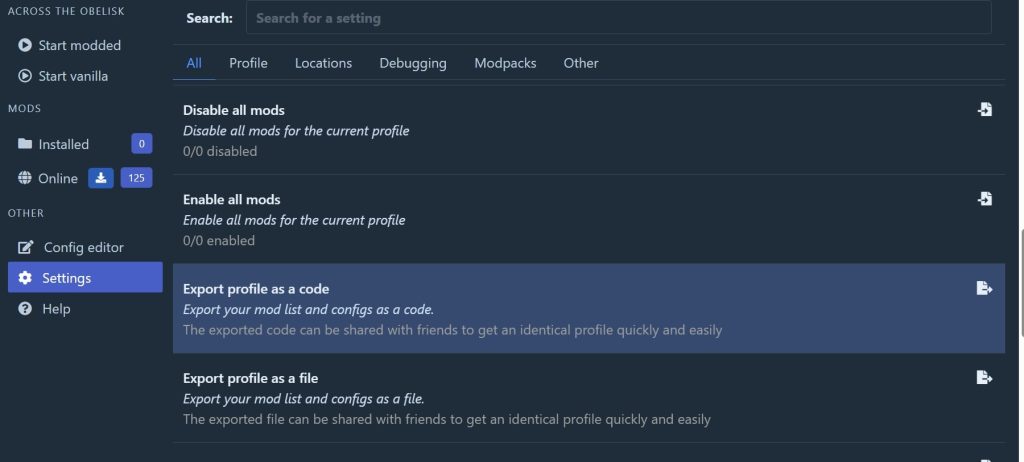
- Export your mod list by clicking “Export profile as code.”
- Go to the online section inside R2ModMan and download BepInEx again.
- After everything starts working, go back to settings and turn the download cache back on.
8: “Failed to Install Mod” Error
Issue
This error means the app couldn’t download or install a mod.
- Check your internet connection and restart R2ModMan.
- Turn off any VPN or firewall that might be blocking the connection.
- Thunderstore servers can sometimes go down try again later.
9: Profile Missing or Corrupted
Issue
If your mods or profiles disappear, it’s usually a sync or folder problem.
- Always export your profile as a backup (Settings → Export Profile as Code).
- If a profile is corrupted, create a new one and re-import your mods.
- Avoid moving R2ModMan’s data folders manually.
10: Mods Stop Working After Game Update
Issue
When a new game update arrives, some mods may not work anymore until the developers update them.
- Wait for mod authors to release updated versions on Thunderstore.
- Make sure BepInEx and any required frameworks are updated too.
- You can roll back to a previous game version if supported.
11: Folder or Permission Errors
Issue
You might see errors like “Cannot write file” or “Access denied.”
- Run R2ModMan as Administrator.
- Check that your game folder isn’t read-only.
- If your game is on an external drive, make sure it’s formatted in NTFS, not FAT32.
Pro Tip:
If running as Administrator fixes the issue, a better long-term solution is to move your game directory to a location that does not require admin rights, for example: C:\Games\[GameName] instead of C:\Program Files\[GameName]
12: R2ModMan Cannot Be Closed
Issue
When you try to close R2ModMan, it stays open, freezes, or shows a message saying it “cannot be closed manually.” This normally happens when the app is stuck or one of your mods is causing the freeze.
- Restart your PC to reset the app completely.
- Run R2ModMan as Administrator so Windows doesn’t block processes.
- Delete the settings.json file to remove corrupted settings.
- Uninstall and reinstall R2ModMan if the app is still stuck.
- Disable or remove mods one by one to find which one is causing the freeze.
- Clear Thunderstore or R2ModMan cache and launch the app again.
13: How to Use R2ModMan Without Steam
Issue
You want to use R2ModMan for a game that is not installed through Steam. R2ModMan can still work, but it needs the correct game folder. If the folder is wrong, mods won’t install or the game won’t launch.
- Open R2ModMan and select your game or create a new profile.
- When it asks for the game location, click Browse.
- Go to the folder where the game’s .exe file is located.
- Select that folder and confirm.
- Install mods from the Online section like normal.
- Start the game using Start Modded or start the game manually — mods will still load.
- Make sure the game is fully extracted (not inside a ZIP or RAR).
14: Peak Not Showing in R2ModMan
Issue
If the game “Peak” doesn’t appear in R2ModMan’s game selection list, it is usually caused by a wrong game directory, R2ModMan not detecting the installation path, or the profile not being synced properly.
- Open R2ModMan → Settings → Browse Data Folder → find and delete the folder named "PEAK"
- Delete the old Peak profile from R2ModMan settings
- Re-import your profile using the code you saved earlier (Settings → Profile → Import from Code)
- Make sure Peak is fully updated via Steam before launching with mods
- Ensure BepInEx is correctly installed and launch parameters are compatible with your current game version
- Restart your PC and try launching R2ModMan again
15: What to do if “R2ModMan Not Working with Webfishing”
Issue
If r2modman is not working with Webfishing, it may be due to a corrupted GDWeave installation or Windows blocking the winmm.dll file.
- If game closes immediately, remove the GDWeave folder and winmm.dll from the Webfishing install folder, then reinstall via r2modman
- If Windows Defender blocks winmm.dll, open Windows Security → add exception for GDWeave/winmm.dll, so it doesn’t get removed.
- If the games stop working after an update, go to the R2 mod manager, create a new profile, and set things up again.
- Never use the old Lure mod because it can crash the game. Always use the LureRefreshed for better stability.
- Create a file named .forceproton in the game folder when the game does not launch. Usually, this solution helps you to fix it. This method is only applicable for Linux or Steam Deck.
16: Game Not Showing in R2ModMan After Download
Issue
If a game doesn’t appear in R2ModMan’s game selection list after installation, it is usually caused by an incorrect file path, a corrupted installation,
or missing administrative permissions.
- Manually set the correct game folder and .exe path in the mod manager in your Steam directory
- Delete its %appdata% files if needed and reinstall your game
- On Steam Deck, make sure game is updated via Steam
- Run the game as an administrator by right-clicking and choosing this option
- If mods conflict, switch install mode from Symlink to Legacy in Settings → Advanced
17: R2ModMan Not Working with ULTRAKILL
Issue
If R2ModMan is not working with ULTRAKILL, it is usually caused by a corrupted BepInEx installation, incorrect game directory, or conflicting mod settings.
- Open R2ModMan, go to Settings, select Locations, and verify that the game directory is pointing to the correct ULTRAKILL folder on your PC.
- Right-click ULTRAKILL in your Steam library, select Manage, click Browse Local Files, and confirm that the folder shown matches the path set in R2ModMan.
- Go to the Online section in R2ModMan, search for "BepInExPack", and download it to reinstall and refresh BepInEx.
- Clear the cache by going to Settings and disabling the Download Cache option.
- Right-click ULTRAKILL in Steam, open Properties, scroll down, and make sure the Launch Options box is completely empty.
- Right-click the R2ModMan app and select Run as Administrator to give it the permissions it needs.
- If the issue continues, create a new profile in R2ModMan and set up your mods again from scratch.
Other Trouble Shooting and Solutions for R2ModMan
R2ModMan Network Error
Issue
If R2ModMan shows “Something went wrong on the server” or HTTP status code 503, it means R2ModMan cannot connect to Thunderstore servers. This usually happens due to internet issues, server downtime, or a firewall blocking the connection.
- Check your internet connection and restart R2ModMan
- Thunderstore servers may be temporarily down - wait and try again later or disable any VPN or firewall temporarily and try again
- Go to Settings → Toggle Download Cache → disable it, then restart R2ModMan
- Restart your router and try again
- If WiFi signals are weak, connect your device to an Ethernet cable for a more stable connection
- Check if Thunderstore is under maintenance by visiting Thunderstore.io directly in your browser
JavaScript Error on Startup
Issue
If R2ModMan shows “A JavaScript error occurred in the main process” when you try to open it, the app is failing to launch properly. This is usually caused by corrupted files, an outdated version, or an incompatible operating system.
- Update to the latest version v3.2.17 from Thunderstore or GitHub
- Reinstall R2ModMan completely fresh or Run as Administrator
- Clear the folder: AppData\Roaming\r2modman
- Windows 7 is no longer supported - upgrade to Windows 10 or newer
Export Profile as Code Not Working
Issue
If clicking “Export Profile as Code” does not generate a code, it usually means your BepInEx installation is corrupted or the download cache is causing a conflict.
- This usually means BepInEx is corrupted
- Go to Settings → Toggle Download Cache → disable it and try again
- If still failing then reinstall BepInEx from the Online section or create a new profile and start fresh
R2ModMan Not Updating
Issue
If R2ModMan is stuck on an old version and not updating automatically, it is usually because the app was not fully closed, or antivirus is blocking the update process.
- Close R2ModMan completely — updates install automatically when app closes
- Download the latest version of R2modman.
- If auto-update keeps failing then uninstall & reinstall fresh copy or check antivirus is not blocking updates
Steam Deck Dropdowns Not Visible
Issue
On Steam Deck in Game Mode, dropdown menus in R2ModMan may appear behind the window and become unclickable. This is a known Gamescope compositor issue
acknowledged in v3.2.17.
- Use arrow keys to navigate dropdowns as a workaround
- Switch to Desktop Mode — this issue does not occur there
- This is a known issue acknowledged in v3.2.17
Failed to Find Preloader DLL
Issue
If R2ModMan shows “Failed to find preloader DLL”, it means BepInEx is missing, corrupted, or incompatible with your game version. Mods will not load until this is resolved.
- Go to Settings → Debugging → Run Preloader Fix
- Delete the BepInEx folder in your game directory, as it will rebuild automatically
- Reinstall BepInEx from the Online section in R2ModMan or check 32-bit vs 64-bit compatibility with your game
EPERM Error (Operation Not Permitted)
Issue

If you see “EPERM: operation not permitted” error, make sure the game is completely closed before installing mods. If the error persists, go to Settings → Browse Data Folder, delete the profile folder for that game, and redownload your mods.
Epic Games Users - Start Vanilla Issue
Issue

If “Start Vanilla” fails with a “doorstop_config.ini” error, this is a known compatibility issue between r2modman and the Epic Games launcher. Launch the game directly from Epic Games launcher to play without mods. For modded launch, go to Settings → Locations, set the game directory manually, then run Settings → Debugging → Preloader Fix.
Quick Final Tips
- Always launch your game by clicking "Start Modded" inside R2ModMan and never directly from Steam or desktop.
- Keep .NET Runtime, R2ModMan, and all mods up to date at all times
- Export your mod profile as a backup before making any major changes
- Restart your PC after applying any fix, as it resolves most minor glitches
- If nothing works, uninstall R2ModMan and do a fresh reinstall of v3.2.18
Conclusion
These are the most common issues users face while using R2ModMan to mod their games. Follow the step-by-step fixes above and most problems will be resolved quickly. If your issue is not listed here, download the latest version of R2ModMan or visit our contact page, as our support team is ready to help.
Still stuck? Join the official r2modman Discord server with 8,700+ active members for help and support from the modding community.
FAQs
How to fix R2modman not launching mods?
If the game is launched but no mods are working, then make some settings in R2Mod Manager. Choose a profile and open a setting. Click on the location and press Change <game> directory. Also, ensure all these directories are compatible with the game and your device. It’s also fine if the path is the same as the one in Steam.
Why is R2 Mod Manager not opening?
If R2ModMan is not opening, make sure you have .NET Desktop Runtime 6.0 or newer installed. Try running it as Administrator by right-clicking the app. If it still won’t open, delete the settings.json file at C:\\Users [Username]\\AppData\\Roaming\\r2modman, then reinstall the latest version v3.2.15 from our R2ModMan download page.
Why is my Mod not working?
If a mod is not working, check that it is compatible with your current game version. Make sure BepInEx and other required dependencies are installed from the Online section in R2ModMan. Check that mods are toggled ON in the Installed tab and always launch using Start Modded — never directly from Steam or Epic Games.
How to force R2modman to update?
R2ModMan updates automatically when you close the app. If it is not updating, close R2ModMan completely and reopen it. If auto-update keeps failing, manually download the latest version v3.2.15 from Thunderstore or GitHub (ebkr/r2modmanPlus) and reinstall it fresh.
Does Steam ban mods installed with R2ModMan?
For games supported by R2ModMan, like Risk of Rain 2, Valheim, and Lethal Company, modding is generally safe and accepted by developers. These games do not use VAC anti-cheat. Always check the specific game’s modding policy before installing mods for online play.
Does uninstalling a game remove R2ModMan mods?
No. Uninstalling a game does not remove mods installed by R2ModMan because mods are stored in a separate folder at C:\\Users\\[Username]\\AppData\\Roaming\\r2modman, completely separate from the game files. You need to manually delete the mod profile folder if you want to remove mods.
What are the R2modman profiles?
R2ModMan profiles are separate mod setups that let you keep different sets of mods for the same game. Each profile has its own mods, settings, and configuration, so you can switch between playstyles easily without breaking anything. You can export profiles as a code and share them with friends.
Do I need to update R2modman?
No. R2ModMan updates itself automatically. When a new update is ready, it downloads in the background while you use the app and installs automatically after you close it. If auto-update fails, download version v3.2.15 manually from Thunderstore or GitHub.
Where are r2modman mods stored?
R2ModMan stores mods in a separate directory at C:\\Users\\[Username]\\AppData\\Roaming\\r2modman on Windows. Each game has its own folder within this directory, keeping your original game files completely untouched.
How do I clear r2modman cache?
To clear R2ModMan cache, open R2ModMan and go to Settings. Scroll down and find Toggle Download Cache — disable it. This forces R2ModMan to download fresh files instead of using cached data. Once your issue is resolved, go back to Settings and re-enable the Download Cache.
How to fix mod loading errors in R2ModMan?
To fix mod loading errors, make sure all mods are updated and your game path is set correctly in Settings. Remove any outdated or conflicting mods. Create a new profile and test mods one by one to find the problematic one. Switch the install mode to Legacy in Settings or run R2ModMan as Administrator. If the issue persists, uninstall R2ModMan, reinstall the latest version v3.2.15, and try again.
How to reset R2 Mod Manager?
To reset R2ModMan, close the app completely and delete the folder at %appdata%\\r2modman. You can also delete game-specific data by going to Settings and clicking Browse Data Folder. The simplest method is to create a new clean profile, this removes all modded configurations without deleting anything else.
How to uninstall r2modman completely?
To uninstall R2ModMan on Windows, go to Control Panel, open Programs and Features, find R2ModMan, and click Uninstall. Then manually delete the remaining folder at C:\\Users\\[Username]\\AppData\\Roaming\\r2modman for a complete removal. On Linux, delete the AppImage file and remove the config folder at ~/.config/r2modman.
R2ModMan not working with Lethal Company?
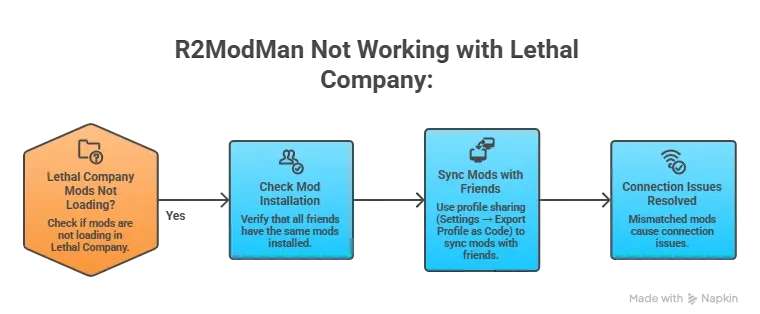
Make sure BepInEx is installed and your game directory is set correctly in Settings. For multiplayer, use profile sharing, go to Settings, export your profile as a code, and share it with friends so everyone has identical mods loaded. Mismatched mods cause connection issues in Lethal Company.
R2ModMan not working with Valheim?
Open R2ModMan, go to Settings and Locations, and verify the Valheim game directory is correct. Make sure BepInEx is installed and Steam Launch Options are completely empty, right-click Valheim in Steam and open Properties to check. Always launch Valheim using Start Modded inside R2ModMan.